
Reduce no-shows with automated reminders
June 26, 2026
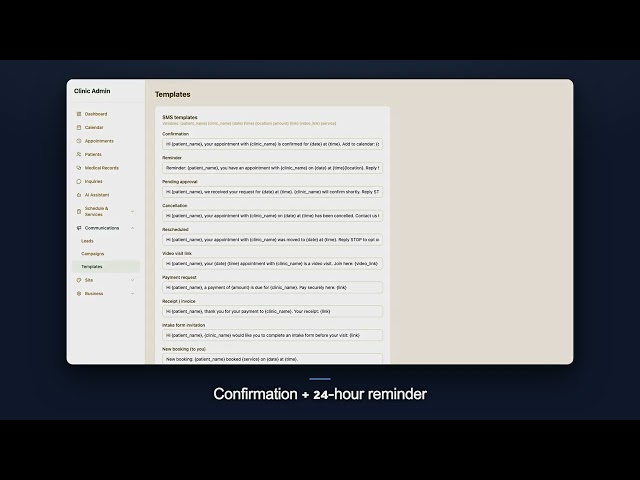
The most reliable way to reduce no-shows is a short, predictable sequence of messages where each one makes it easy for the patient to answer. That means a confirmation when the appointment is booked, a reminder about a day before, and a link that lets the patient confirm, change the time or cancel without signing in. Here is how that works in RafaNest, and how to set it up so it does the job.
Confirm at booking, then remind once
As soon as a patient books, RafaNest sends a confirmation. If your clinic approves new bookings by hand, the patient gets a pending notice first and the confirmation follows when you approve. The confirmation carries a "Change or cancel this appointment" link, so a patient who realizes there is a conflict has somewhere to go besides silence.
About a day before the visit, a reminder goes out. It is sent once per appointment, and it lands roughly 24 to 28 hours ahead, not at an exact hour, because the reminder job runs every few hours and is built to cover every appointment rather than hit one precise minute. Reminders are on by default, so a new clinic does not have to switch anything on.
Email for everyone, text for patients who agreed
Email reminders go to every patient who has an email address. Text reminders go only to patients who agreed to receive texts, because US law requires that consent. You record it on the patient's page, or with the SMS consent column when you import patients, and a patient who has not agreed simply gets the email. You can also block email or texts for a patient who asked you to.
Keep the wording short. A text leaves your secure system and travels through the mobile carrier, so it is a poor place for diagnoses or treatment details. A date, a time and a way to answer is enough. You can change the wording of every text and email under Templates, and a friendly, human tone still beats a cold automated notice.
Give the patient a one-tap answer
Every reminder includes a "Confirm or cancel" link that works without an account. From it a patient can do three things.
- Confirm. Tapping "I'll be there" marks the appointment as patient confirmed, and you see it on your dashboard and in the appointments list.
- Change the time. The patient picks another open time for the same service and location. You get a notice, your Google Calendar event moves if it is connected, the patient gets a confirmation of the new time, and the reminder goes out again before the new visit.
- Cancel. You get an email and the time frees up for someone else.
Cancelling and moving online are offered only if your settings allow patients to cancel online, and changing the time closes inside the reschedule lock window you choose. If you take payment at booking, cancelling follows your refund window. The patient sees your terms on the booking page and on this link, so nothing comes as a surprise. You find all of these rules under Settings, in Booking and cancellation.
Turn freed slots into bookings
When a day is full, the booking page offers "Tell me if a time opens up that day". A patient leaves a name and email, RafaNest checks every three hours whether that day now has an open time, and each waiting patient gets one email with a link straight to it. No time is held for anyone, so whoever books first gets it. A cancellation made from the reminder link frees a time, and the waitlist can fill it without any work from you.
Back the reminders with a clear rule
Reminders reduce forgetting. A written policy reduces the rest, the patients who know exactly what a late cancellation costs. State your window in plain words, keep it the same for everyone, and apply it consistently. Our no-show and late cancellation policy template gives you wording to start from.
Measure and adjust
Mark missed visits as No-show in the appointments list so you can filter for them and see how many you really have. Check the count once a month. If it is not falling, check whether patients are confirming from the link and whether your patients have agreed to receive texts, since a patient without that consent only gets the email. Small changes to the wording or the timing usually beat a complicated system.
For more on the messages RafaNest sends, read the notifications and reminders guide. If you are setting up a new practice, follow the practice software checklist for your first 30 days.